

Welcome to Samsung
Maximise the use of your Samsung products with comprehensive manuals, installation guides, how-to videos, warranty info and SmartThings


Suggested for you
Explore device features
Get your step-by-step guide with our how-to videos


Explore latest offers
Upgrade your home with latest TVs and Appliances


Control your home with ease
Add your devices to the SmartThings app for a whole new world of connected living


Create a Samsung account
Access all Samsung services with single log-in and earn rewards


Get started
Maximise your product potential in 3 easy steps
Step 1: Visit Samsung support page


Step 2: Enter your model code or select a category


Step 3: Download user manuals and guides


Manuals & Documents
Find and download your Samsung product user manual PDF, guides software or instructions
Get connected
Register Samsung Account
Connect all devices with one account


Register products
Register & check warranty status for all your products


Understand your warranty
Understand what is covered in your warranty


Join Samsung Members
Discover exclusive insights & offers only for Samsung community


Connect your devices
Follow the steps to connect your devices and create a smarter home


Add device
your Samsung account, then tap (+) to add device


Scan QR code
scan the product QR code


Add from list
by selecting it from the list


Complete setup
to complete the connection


1. Available on Android and iOS devices. A Wi-Fi connection and a Samsung account are required.
Get the most out of your electronics and appliances
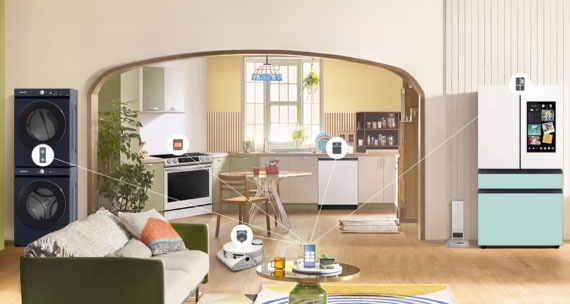
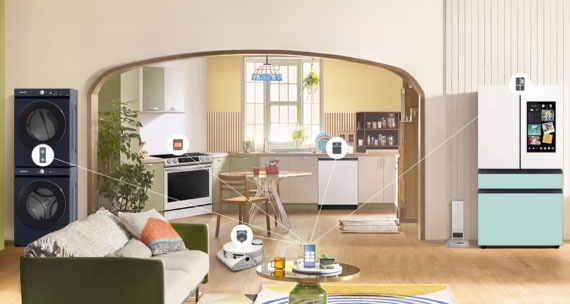
Do the SmartThings
Explore a world of new possibilites with SmartThings1
How-to videos and guides
More tips and tricks to maximise your electronic devices


Enhance your smart TV experience
Tips to use smart TV


Manage your privacy
Enjoy multiple layers of security that keep your personal information protected


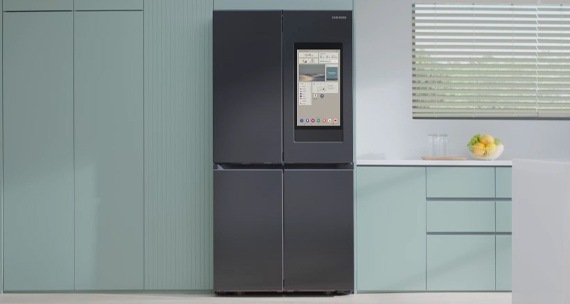
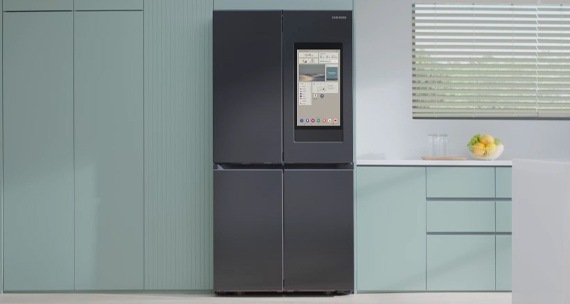
Set up your home with AI
Smart monitor powered by AI


Meet your Samsung apps
Unlock experiences that elevate your daily life with Samsung apps


Exclusive offers to complete your home
Track your oders, earn Rewards points & get notified of the latest deals


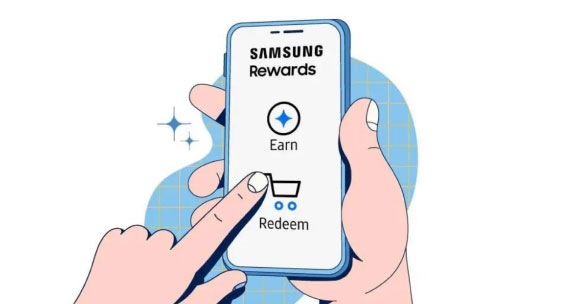
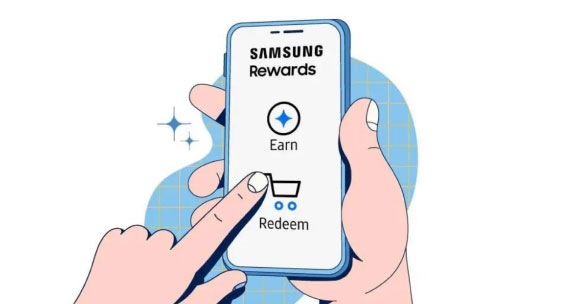
Samsung Rewards
Become a Samsung Rewards member today and start earning points
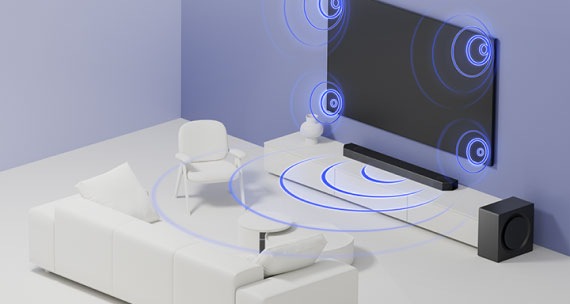
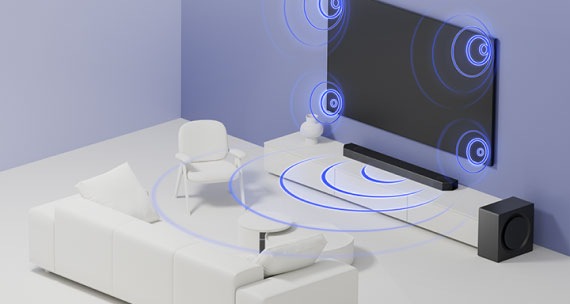
Discover soundbars
Explore the distinct advantage of different sound bar configurations
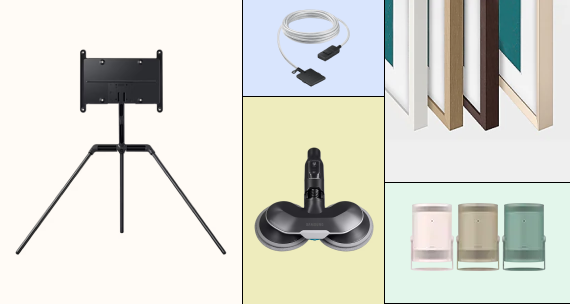
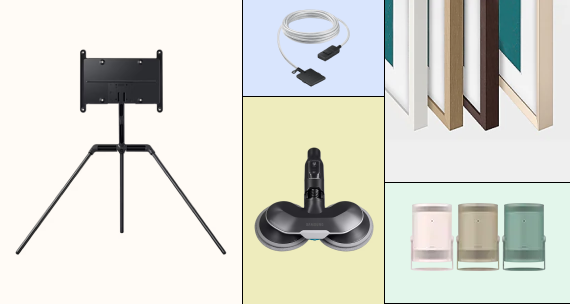
Find your accessories
Explore Samsung accessories to enhance ecosystem experience
Get support
FAQs
The SmartThings app allows you to connect, monitor, and control Samsung smart devices (appliances, TVs, wearables) and other compatible smart home devices from various brands. You can set up routines based on time, weather, or device status, control devices remotely, receive notifications. For more information, please click “Learn More” button under “SmartThings” on this page.
Not all devices require a SmartThings Hub. Wi-Fi connected devices can be added directly via the app. You can check device requirements in the SmartThings app or on the supported devices page.
Yes, SmartThings supports voice assistants like Bixby, Alexa and Google Assistant. You can control devices, run routines, or check status using voice commands. Ensure your devices are linked to the SmartThings app and the voice assistant is set up.
If the app isn’t working correctly (e.g., slow response, missing features), ensure it’s updated to the latest version. Check your network connection, restart the app, or reinstall it.
Yes, you can use the same Samsung account created for your Galaxy device to register and manage your appliances in the SmartThings app. There’s no need to create a separate account. Using the same account ensures all your devices are linked under one profile for seamless control and management.
Samsung Account is an integrated account designed to facilitate easy access to Samsung apps and services.
With a single Samsung Account, you can enjoy various services like Samsung Health, Samsung Wallet, Galaxy Store and Samsung Cloud. It helps you find lost Samsung devices with Samsung Find and ensures data protection with powerful security features. Plus, using a Samsung Account makes it easy to connect and control multiple Samsung devices through SmartThings, making your connected living smarter and more convenient.
With a Samsung Account, you can conveniently manage Samsung devices like smartphones, tablets and TVs. Once you register your device with a Samsung Account, you can effortlessly access Samsung services without multiple logins. Additionally, it enables you to locate lost devices, enhance device usage through connections and easily seek advice or manage repairs. To learn more about Samsung apps and services, visit www.samsung.com/au/apps
Protecting your personal information is our top priority at Samsung. We not only implement essential measures mandated by privacy laws for encryption and security but also take extra steps to guarantee a secure and worry-free experience. User information is encrypted, and we send login notifications to prompt password updates or encourage setting up two-step verification.
Samsung Account registration is subject to age restrictions based on the laws of each country.
1. SmartThings Energy service availability varies by country, region, or device. Available on Android and iOS devices (Android OS 9↑, iOS 14↑). A Wi-Fi connection and a Samsung Account are required. All devices need to be registered in the SmartThings app to monitor energy consumption.
